
Download AP Grapher – wireless network scanner for Mac
Overview
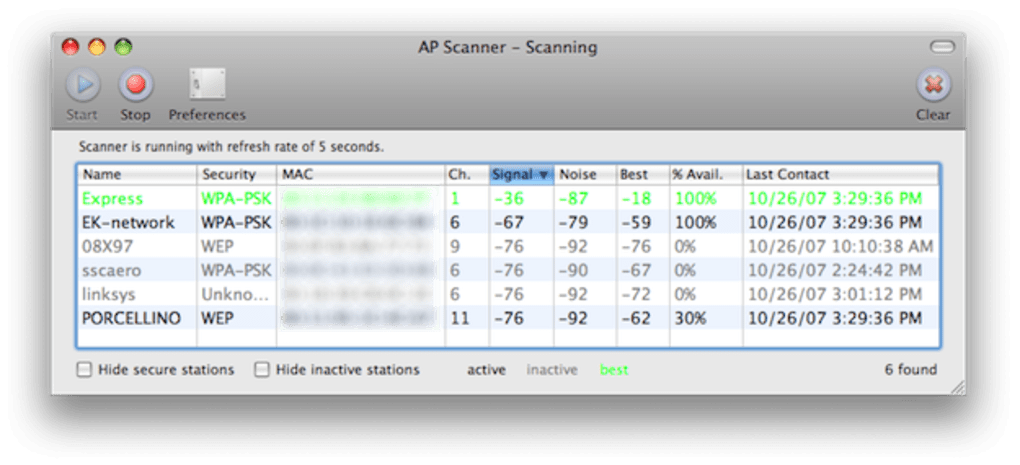
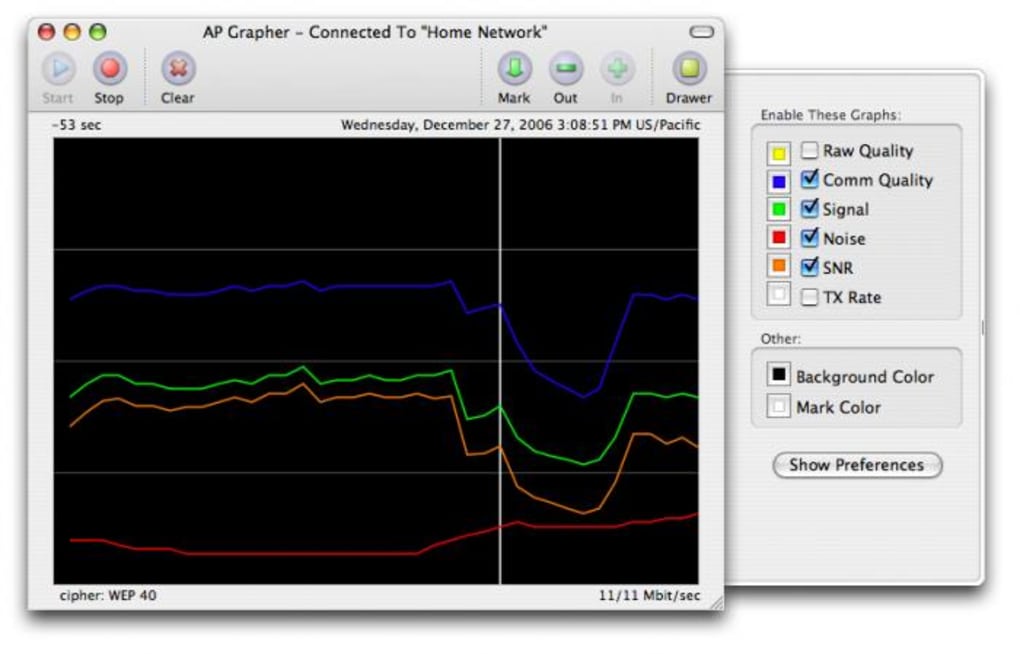
AP Grapher is a dedicated wireless‑network stumbler designed exclusively for macOS. It gives you a clear, real‑time view of every Wi‑Fi hotspot in range, from bustling coffee‑shop routers to hidden corporate access points. The interface is split into two distinct windows: the **Scanner**, which lists each network with technical details such as signal strength, noise level, channel, security type, and the time of the last contact; and the **Grapher**, a dynamic graph that visualizes raw quality, signal, and noise over time.
This dual‑view approach makes it simple to spot the strongest, cleanest connection and to monitor its stability before you decide to join. The software automatically highlights the best candidate in bright green, helping you make a quick, informed choice. While AP Grapher is free to download, it offers optional in‑app purchases for advanced analytics and custom alerts.
Users should remember that probing networks they do not own can be illegal, so the tool is intended for legitimate troubleshooting, site surveys, and personal use. Although the app is feature‑rich, it does have a noticeable memory footprint, especially when the grapher window is active. Power users of MacBook Pros with older 802.11n cards may encounter occasional glitches, but most reviewers agree that the benefits far outweigh the occasional hiccup.
Key Features & Installation Guide
Feature List
- Real‑time scanning of all nearby Wi‑Fi networks with detailed technical metrics.
- Graphical representation of signal quality, noise, and raw signal strength over time.
- Automatic best‑network detection highlighted in bright green.
- Filters to hide inactive, secured, or low‑quality stations.
- Percentage estimate of available bandwidth for each network.
- Last‑contact timestamp to help you track network stability.
- Exportable CSV reports for professional site‑survey documentation.
- Optional premium module for custom alerts and historical trend analysis.
Installation & Usage Instructions
Downloading and installing AP Grapher is straightforward. Begin by visiting the official website or the Mac App Store, where the latest version is offered as a free download. After clicking the Download button, macOS will prompt you to open the .dmg file. Drag the AP Grapher icon into your /Applications folder, then launch the app. The first run may request permission to access your location and network interfaces; granting these permissions is essential for accurate scanning.
Once the program starts, you will see the two main panes. The **Scanner** appears on the left side, listing each detected SSID with columns for signal (dBm), noise (dBm), channel, security type (WPA2, WPA3, Open), and a calculated quality percentage. Use the filter toolbar at the top to hide networks that are either secured (if you only need open networks) or have a signal below a chosen threshold. The **Grapher** window can be toggled from the toolbar; it renders a live line chart that updates every second, allowing you to watch signal fluctuations as you move around a building or office.
For best performance, start the scanner first, identify the strongest network, then open the grapher for that specific SSID. When you have collected the data you need, close the grapher to free up RAM, and use the “Export CSV” button to save the results for later analysis. The interface also includes a “Refresh” button that forces a new scan, useful after you change your physical location or after a router reboot.
Compatibility, Performance, and Pros / Cons
AP Grapher runs on macOS 10.13 (High Sierra) and newer, including macOS 12 Monterey, macOS 13 Ventura, and the latest macOS 14 Sonoma. The application is optimized for both Intel‑based Macs and Apple Silicon (M1, M2, and later) thanks to universal binaries. While the software works on any Mac that supports the standard Wi‑Fi hardware stack, users with older 802.11n cards—particularly certain MacBook Pro models released before 2015—may notice occasional lag or incomplete channel data. In such cases, updating the macOS firmware and resetting the Wi‑Fi module often resolves the issue.
Performance Considerations
One of the most frequently mentioned drawbacks is the memory consumption when the Grapher window is active. The real‑time chart renders a high‑frequency data stream, which can push RAM usage into the 300‑500 MB range on older machines. This is why the developer recommends closing the grapher after you have captured the needed data. On modern Apple Silicon Macs, the impact is far less pronounced, thanks to the efficient memory management of the M‑series chips.
Pros
- Intuitive dual‑view interface that separates raw data from visual trends.
- Accurate signal and noise measurements useful for professional site surveys.
- Automatic best‑network highlighting speeds up decision‑making.
- Powerful filtering options reduce clutter in dense Wi‑Fi environments.
- Free core version with optional premium add‑on for advanced analytics.
Cons
- Higher RAM usage when the grapher is active, especially on legacy Macs.
- Occasional compatibility quirks with older 802.11n Wi‑Fi cards.
- No built‑in Wi‑Fi password manager; you must enter credentials manually.
- Limited to macOS; no Windows, Android, or iOS counterpart.
- Export functionality is limited to CSV; no direct PDF or image export.
Frequently Asked Questions
Is AP Grapher safe to use on public Wi‑Fi networks?
Yes. AP Grapher only reads broadcast information that any Wi‑Fi device can see. It does not attempt to crack passwords or gain unauthorized access, so it is perfectly legal and safe for public networks.
Can I run AP Grapher on a MacBook Air with Apple Silicon?
Absolutely. The application ships as a universal binary, meaning it runs natively on both Intel and Apple Silicon Macs, including the latest M1 and M2 MacBook Air models.
Why does the app consume a lot of memory?
The grapher window continuously records signal, noise, and quality metrics at a high refresh rate. This data is stored temporarily for real‑time chart rendering, which explains the elevated RAM usage. Closing the grapher when you’re finished will release the memory.
Do I need admin rights to install AP Grapher?
No. The installer places the app in your /Applications folder, which does not require elevated privileges on a standard macOS account. However, granting the app permission to access location and network interfaces is mandatory for full functionality.
Is there a way to export the graph as an image?
The free version currently only supports CSV export of the raw data. If you need visual exports (PNG, PDF), you can use the premium add‑on, which adds a “Save Graph Image” button to the grapher window.
Conclusion & Call to Action
AP Grapher stands out as one of the most comprehensive wireless‑network scanning tools available for macOS. Its blend of detailed technical listings and an intuitive graphical view equips both casual users and IT professionals with the data they need to choose the optimal Wi‑Fi connection quickly. While the memory usage can be a concern on older machines, the ability to close the grapher after analysis mitigates this drawback. The free core version already delivers a solid feature set, and the optional premium module provides the extra polish for power users who require historical trend analysis and image export capabilities.
If you regularly move between coffee shops, co‑working spaces, or corporate offices, downloading AP Grapher will give you a clear advantage in identifying the strongest, most reliable signal. Click the button below to start your free download, and experience a more informed, secure Wi‑Fi connection today.
Pros:
- Dual‑view scanner and graph for quick visual analysis.
- Accurate signal & noise metrics.
- Free core version with optional premium upgrades.
- Universal binary works on all modern Macs.
- Exportable CSV for professional reporting.
Cons:
- Higher RAM usage when grapher is active.
- Occasional glitches on very old 802.11n cards.
- No built‑in password manager.
- Lacks Windows/Android/iOS counterparts.
- Image export only in premium version.







